
Table of Contents
Technician Schedule
Overview
1) You want to schedule a technician, have a look at the date-overview of the technician or to change it?
Please, click on <font color="darkorange"><b>Technician Schedule</b></font>:

2) The appearing mask consist of two parts:

- Part (1) Calendar: You can see a calender with all available and scheduled technicians including a searchmask.
- Part (2) Service Calls: With the search including filtering you can display each service call.
The picture shows the Technician schedule, the Qualification for the customer's employee and a legend containing the display of daily degree of utilisation of each employee.
The Service employee can plan in advance the start dates for the after sale service and it will be scheduled by the responsible managing clerk. The managing clerk is up to date about the capacity utilisation of each after sale service employee by a function of the calender.
The nearest after sale service employee can be choosed and scheduled for the service through the zip code search.
Technician schedule - display devices
Part (1) – The week view:
| up to and including Version 5.2 |
|---|
 |
| since Version 5.3 |
![Week view [5.3]](/lib/exe/detail.php?id=en%3Asm%3Atechnicianschedule%3Astart&media=en:sm:technicianschedule:week_view_5-3.png "Week view [5.3]") |
This is the week view of the calender with an overview of all scheduled technician and a search including filtering:
- The calender overview informed you about each technician. You can see if he is already scheduled and for which customer.
- The space of time can be selected with these buttons. The arrow can be used to go forward or backward in the time.
< und > → 1 day backward or forward; < < und > > → 1 week backward or forward; < < < und > > > → 1 month backward or forward of the current day. - Which technicians are available you can see in the list on the left.
- Each technician has a coloured status for the day. So you can see the capacity utilisation and availability.
Status meaning:
free - The technician has no dates and can be scheduled.
half full - The technician has dates at this day but their is some space time that can be scheduled.
full - The technician has no space time left for this day.
In addition the technician can add unavailabilities.
Part (1) - Year view
The service calls in year view:
| up to and including version 5.2 |
|---|
 |
| since version 5.3 |
![Year view [5.3]](/lib/exe/detail.php?id=en%3Asm%3Atechnicianschedule%3Astart&media=en:sm:technicianschedule:year_view_5-3.png "Year view [5.3]") |
On the left you can see the name of the technician of the year view.
The year view has an overview of all operating days.
<font size="+1" color="red"><b>NEW! [since version 5.7]</b></font>
Since Version 5.7 the year view has been deleted.
Schedule technician service calls
Streightly at the technician schedule
The following window will open when you click on any day.

Through this window you can 'reserve' a technician for a specific day.
The window is called <font color="darkorange"><b>service calls</b></font> and contains the options:
<font color="darkorange"><b>Add/Insert</b></font>: At this point you can add technician for service calls. In addition, you can add a note and the duration. Dates scheduled streigtly at the technician schedule are only place holder and get only status<font color="darkorange"><b>proposed</b></font>.
| 1. Add Unavailabillity | |
|---|---|
| up to and including Version 5.2 | since Version 5.3 |
 | ![Add unavailability [5.3]](/lib/exe/detail.php?id=en%3Asm%3Atechnicianschedule%3Astart&media=en:sm:technicianschedule:add_availability_5-3.png "Add unavailability [5.3]") |
| General: Enter Date from and Date to and choose the Unabailability type. Click on save and you get a valid entry. In addition, you can coordinate the unavailability at the user profile of a technician. |
|
| Unavailability type: - Sick leave - Vacation - Training | Unavailability type: - Sick leave - Vacation - Training - Holidays (In addition, you can add them through the Business Hours for all) - Office Furthermore, you can switch to the date scheduling through <font color="darkorange"><b>Add/Insert</b></font>. |
| 2. Add/ Insert | |
| up to and including Version 5.2 | since Version 5.3 |
 | ![Add/ Insert [5.3]](/lib/exe/detail.php?id=en%3Asm%3Atechnicianschedule%3Astart&media=en:sm:technicianschedule:add_insert_5-3.png "Add/ Insert [5.3]") |
| General: The name of the technician will be add automatically. In addition, you can add a note and a Date from. You can switch to the <font color="darkorange"><b>Add Unavailability</b></font> too. The technician will persist. After click on save the date is scheduled. |
|
| Moreover, you can add a Date to. This function enabled to enter dates over few days. | |
Schedule a technician through an Incident and accordingly through the customer proposals.
A few Incidents need the help of a technician to solve the problem. How to propose a date through an Incident read Request technician, please.
Back at the Technician schedule the managing clerk can find all proposed dates from Incidents in the list <font color="darkorange"><b>Service calls</b></font> on the left.
Each technician operation is temporary not scheduled and in status <font color="darkorange"><b>proposed</b></font>.
| up to and including version 5.2 | since version 5.3 |
|---|---|
 | ![proposed service calls by customers [5.3]](/lib/exe/detail.php?id=en%3Asm%3Atechnicianschedule%3Astart&media=en:sm:technicianschedule:service_calls_5-3.png "proposed service calls by customers [5.3]") |
| specific search for date proposals: - Case Id - Zip code - Date From/ To - Status - Technician | specific search for date proposals: - Case Id - Zip code - Status - Technician - Date From/ To - With interval |
Schedule proposed appointments
| up to and including version 5.2 | since version 5.3 |
|---|---|
 |  |
| 1) These are the dates proposed by customer. They have to be scheduled finally. 2) After proposal the date is placed as place holder at the Technician schedule. |
|
| As long as only for one customer dates are scheduled the abbrevation of the customer will be displayed. Through mouseover you can see which status a date has.  | Since version 5.3 the number of dates will be shown at each day. Furthermore, you can see which dates are <font color="darkorange"><b>proposed</b></font> and which <font color="darkorange"><b>scheduled</b></font>. The following legend detail you can find below the Technician schedule.![Status of appointment [5.3]](/lib/exe/detail.php?id=en%3Asm%3Atechnicianschedule%3Astart&media=en:sm:technicianschedule:key_5-3.png "Status of appointment [5.3]")   |
To schedule an appointment you have to open it through clicking on the appointment in the list.
In the following view you can change the date, time, note and status. If you are still in this view you can change the technician too. For this you have to click on a day of the technician you wish and on <font color="darkorange"><b>Ass/Insert</b></font>. The datas will assumed unchanged.
| up to and including version 5.2 | since version 5.3 |
|---|---|
 | ![plan proposed date [5.3]](/lib/exe/detail.php?id=en%3Asm%3Atechnicianschedule%3Astart&media=en:sm:technicianschedule:edit_proposed_5-3.png "plan proposed date [5.3]") |
| The following status are possible: - scheduled - complete - cancelled - final - proposed - ready for billing |
|
| Or click at the day where the appointment is you would like to change. A window opening where you have to click on the appointment to change it like described before. | |
 | ![Changing an appointment [version 5.3]](/lib/exe/detail.php?id=en%3Asm%3Atechnicianschedule%3Astart&media=en:sm:technicianschedule:edit_proposed2_5-3.png "Changing an appointment [version 5.3]") |
<note important>Since version 5.3 appointments can be scheduled via drag and drop out of the list on the left.
 </note>
Move appointment
Only a few clicks are needed to move an appointment.
- Click on the field where the appointment is scheduled.
- Search the required appointment and click on it for editing.
- Now you can change the day and time. The technician won't change.
To change the technician too:
- Search the required appointment out of the list on the left and click on it for editing.
- Now click on a different field of a different technician inside the Technician schedule.
- The datas will assumed unchanged
If you are ready click on save, please.
<note important>Since version 5.3 you can move the appointment out of the open day to a different day and technician.
 </note>
Display Service calls
Filter Service calls:

You can filter and display Service calls according to several criterias.
Then you click on <font color="darkorange"><b>Add filters</b></font>.
All matching results will be shown.
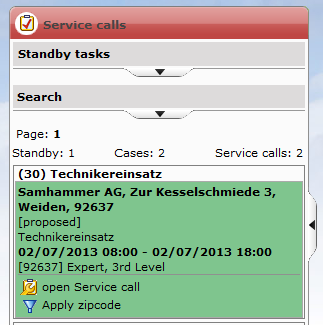
Here you can see:
- the name and address of the company
- the title
- the exact time
- the technician inclusive qualification
- the status
Assign more than one technician to a service call
<font size="+1" color="red"><b>NEW! [since version 5.7]</b></font>
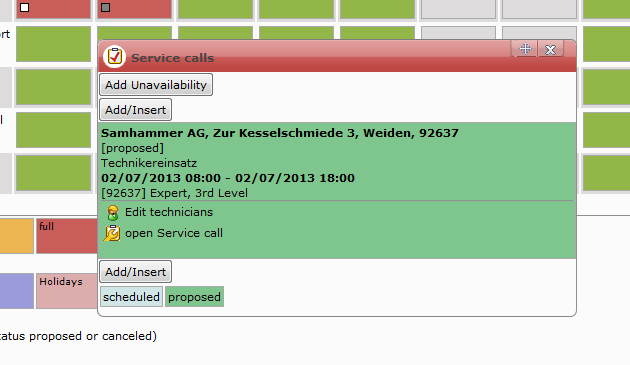
| Since version 5.7 it has been possible to assign more than one technician to a service call. You can reach this if you select the service call and click on “Edit technicians” or if you click on “Open service call”. |
 |  |
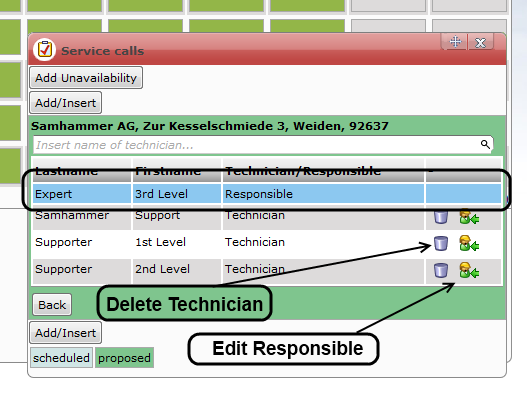
| You can search technicians with a search bar and select them through it. |
 |
| It is possible to assign a responsible to a service call. |
 |
 |


